.png)
Connect TradingView to MetaTrader — simply
Quantum Bridge moves strategy signals from TradingView into MT4/MT5. TradingView decides when and what; the EA handles lots, risk, and execution. One webhook with your API key — no keys inside your Pine code.
Quick start
Four steps. Simple by design.
- Create a Quantum Bridge account and open the dashboard. Copy your API key from Settings → API keys.
- Install the Quantum Bridge EA on MT4 or MT5 (or use a Quantum Bridge hosted terminal). Enable Algo Trading, allow the bridge URLs in Experts options, attach the EA, paste the API key.
- Wire alerts with the injector (fast, covers 90%+ of strategies) or paste helpers manually — then create a TradingView alert with alert() function calls only and your webhook URL.
- Use this test script. Confirm the fill in MetaTrader and in the dashboard signal log.
//@version=6
strategy("Basic Buy Sell Alternating", overlay=true)

// === Quantum Bridge Helpers (v5/v6) ===
m(action, tradeId, entry, sl, tp) =>
    alert(str.format("{0}|{1}|{2}|{3}|{4}", action, tradeId, entry, sl, tp), freq=alert.freq_once_per_bar_close)
m2(action, tradeId, stopPrice, limitPrice, sl, tp) =>
    alert(str.format("{0}|{1}|{2}|{3}|{4}|{5}", action, tradeId, stopPrice, limitPrice, sl, tp), freq=alert.freq_once_per_bar_close)
t(tradeId, newSl) => alert(str.format("TRAIL|{0}|{1}", tradeId, newSl), freq=alert.freq_once_per_bar_close)
tp(tradeId, newTp) => alert(str.format("TP|{0}|{1}", tradeId, newTp), freq=alert.freq_once_per_bar_close)
p(tradeId, percent) => alert(str.format("PARTIAL|{0}|{1}", tradeId, percent), freq=alert.freq_once_per_bar_close)
add(parentId, addNum, sl, tp) => alert(str.format("ADD|{0}'{1}|{2}|{3}", parentId, addNum, sl, tp), freq=alert.freq_once_per_bar_close)
cancel(tradeId) => alert(str.format("CANCEL|{0}", tradeId), freq=alert.freq_once_per_bar_close)
cancelAll() => alert("CANCEL_ALL_PENDING", freq=alert.freq_once_per_bar_close)
closeAllTrades() => alert("CLOSE_ALL", freq=alert.freq_once_per_bar_close)

slPips = input.float(500, "SL (pips)")
tpPips = input.float(1000, "TP (pips)")
pipValue = syminfo.mintick * 10

var bool lastWasBuy = false
var int tradeCount = 0
var string activeTradeId = ""

if barstate.isconfirmed
    float entry = close
    float slDist = slPips * pipValue
    float tpDist = tpPips * pipValue

    if strategy.position_size != 0
        strategy.close_all(comment="Flip close")
        alert(str.format("CLOSE|{0}", activeTradeId), freq=alert.freq_once_per_bar_close)

    if not lastWasBuy
        string tradeId = "Buy_" + str.tostring(tradeCount)
        float buySL = entry - slDist
        float buyTP = entry + tpDist
        m("BUY", tradeId, entry, buySL, buyTP)
        strategy.entry(tradeId, strategy.long, qty=1.0, comment=tradeId)
        strategy.exit("Exit_" + tradeId, from_entry=tradeId, stop=buySL, limit=buyTP)
        activeTradeId := tradeId
        lastWasBuy := true
    else
        string tradeId = "Sell_" + str.tostring(tradeCount)
        float sellSL = entry + slDist
        float sellTP = entry - tpDist
        m("SELL", tradeId, entry, sellSL, sellTP)
        strategy.entry(tradeId, strategy.short, qty=1.0, comment=tradeId)
        strategy.exit("Exit_" + tradeId, from_entry=tradeId, stop=sellSL, limit=sellTP)
        activeTradeId := tradeId
        lastWasBuy := false

    tradeCount := tradeCount + 1
Requirements
What you need before connecting.
| Item | Detail |
|---|---|
| Quantum Bridge account | Registered user with an API key |
| MetaTrader | MT4 or MT5 from your broker (demo or live) |
| TradingView | Plan that supports webhook alerts (Essential or higher) |
| Pine Script | Strategy on v4 / v5 / v6 |
| PC or VPS or Quantum Bridge built-in MT4/MT5 host terminal | Terminal must stay running for the EA to receive signals |
Account & API key
Your API key links the EA and the webhook to your account.
- Sign in → open Settings.
- Copy the key from API keys.
- Paste it into the EA inputs.
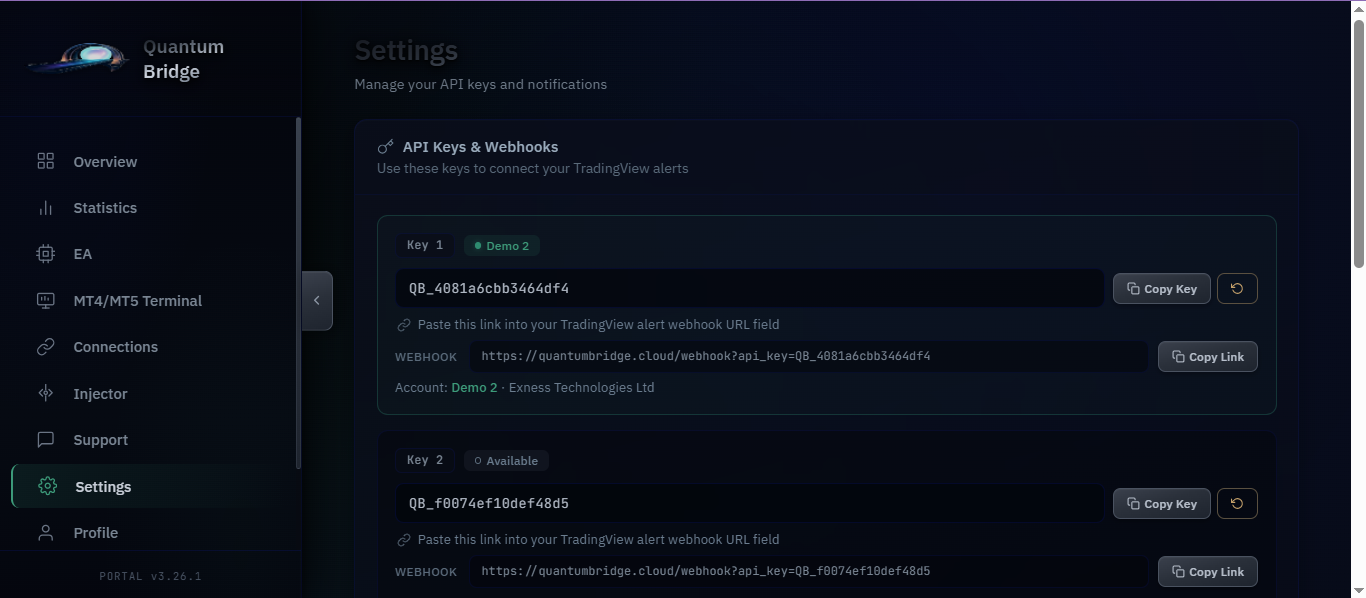
In the EA inputs and as api_key on the webhook in TradingView notifications. Your dashboard Settings page shows the exact webhook to copy.
Yes. After regenerate, update the EA and the webhook URL. An invalid key triggers the EA kill switch and detaches it from the chart.
Install the EA (MT4 / MT5)
Put the EA in Experts, allow the bridge hosts, attach to a chart, paste the API key.
Allow WebRequest URLs
In MetaTrader: Tools → Options → Expert Advisors. Enable WebRequest and add:
https://quantumbridge.cloud
https://quantumbridge.cloud/signal
MT5
- Download the EA from the dashboard.
- File → Open Data Folder → MQL5 → Experts. Copy the EA file(s) here.
- Navigator → Expert Advisors → right-click → Refresh.
- Enable Algo Trading.
- Drag the EA onto a chart. Inputs → paste API key → OK.
- Confirm the dashboard shows the account as MetaTrader Live.
MT4
- Data folder path is MQL4 → Experts.
- Enable AutoTrading / live trading for your build.
- Attach EA, paste API key, confirm MetaTrader Live on the dashboard.
EA settings
From Quantum Bridge EA v5.0. Defaults are fine for first tests; change what you understand.
| Setting | Group | Purpose |
|---|---|---|
| API key | — | Authenticates the terminal to your account |
| Magic | Trade management | Isolates bridge trades from other EAs |
| Max trades / max pending | Trade management | Caps open positions and pending orders |
| Close on opposite | Trade management | Closes opposing side before a new entry |
| Close on signal | Trade management | Closes all before a new entry when enabled |
| Use signal SL / TP | Trade management | Applies SL and TP sent from the alert |
| Slippage / fill type / poll interval | Order execution | Execution tolerance and signal poll rate |
| Dynamic lot / % risk / initial lot / min–max lot | Lot size | How volume is calculated on the EA side |
| Enable adds / fixed or % add / max adds | Add to position | Scale-in behaviour for ADD signals |
| Send positions / history / pending | Dashboard sync | What streams to the web dashboard |
Many of these can also be updated remotely from the dashboard once the EA has sent its config.
Link from the dashboard
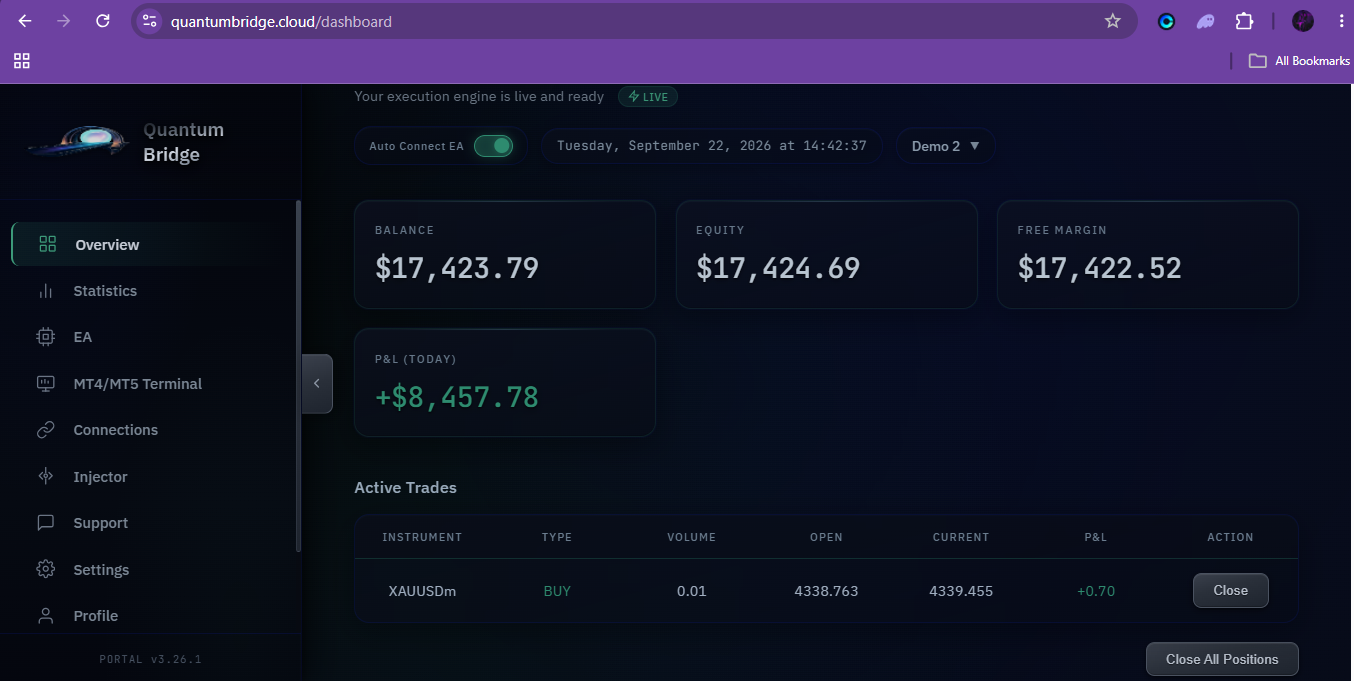
With a valid key and allowed WebRequest hosts, the account registers automatically.
- Status becomes MetaTrader Live after heartbeats.
- Balance, equity, positions, and pending orders can stream to the overview.
- Signal log shows executed and failed bridge actions.
How alerts work
Quantum Bridge does not rewrite your strategy logic. It adds short alert lines next to the actions you already trade — entries, trails, TP changes, partials, cancels, closes. Those alerts reach the EA.
- Your Pine strategy runs on TradingView as usual.
- At each action point, a helper fires a pipe-delimited message (e.g.
BUY|Long_0|1.1050|1.1000|1.1100). - The webhook carries it to Quantum Bridge → your EA mirrors it on the chart symbol.
Before and after — the core pattern
strategy.entry(tradeId, strategy.long, comment=tradeId)
m("BUY", tradeId, entry, sl, tp)
strategy.entry(tradeId, strategy.long, comment=tradeId)
One line above the entry. Place helpers right after strategy(...) so Pine can see them.
Strategy injector
A powerful automation tool that is continuously updated to support more strategy patterns. It is built to inject alerts correctly on the vast majority of strategies — typically 90%+ of real-world scripts go through cleanly.
Use the injector when you want speed: paste your strategy, run inject, review, and deploy. Prefer manual helpers when you want full hands-on control over every line and ID style. In rare cases — deeply nested SL/TP built after entry, or highly custom multi-trade ID systems — the injector may need a small manual touch. If you cannot resolve it, send the script to Quantum Bridge support for guided wiring.
- Injector — fastest path for most users; actively improved for edge cases.
- Manual helpers — full control and personal style; still simple copy-paste.
- Support — when a complex nested script needs a human pass.
The injector renames or tracks trade IDs where needed so trail, TP, partial, and close alerts stay linked to the right position.
Market, stop & limit orders
m = market, stop, and limit. m2 = stop-limit only. One alert line above the order — same tradeId, SL/TP from your script (or 0.0).
| Order | Alert | Pine |
|---|---|---|
| Market buy | m → BUY | strategy.entry(..., strategy.long) |
| Market sell | m → SELL | strategy.entry(..., strategy.short) |
| Buy / sell stop | m → BUYSTOP / SELLSTOP | strategy.entry(..., stop=...) |
| Buy / sell limit | m → BUYLIMIT / SELLLIMIT | strategy.order(..., limit=...) |
| Buy / sell stop-limit | m2 → BUYSTOPLIMIT / SELLSTOPLIMIT | stop + limit prices |
Market buy — no SL/TP
strategy.entry(tradeId, strategy.long, comment=tradeId)
m("BUY", tradeId, close, 0.0, 0.0)
strategy.entry(tradeId, strategy.long, comment=tradeId)
0.0 means “not set” — the bridge does not invent defaults.
Market buy — strategy already has SL/TP
strategy.entry(tradeId, strategy.long, comment=tradeId)
m("BUY", tradeId, entry, sl, tp)
strategy.entry(tradeId, strategy.long, comment=tradeId)
Buy stop
strategy.entry(tradeId, strategy.long, stop=entry)
m("BUYSTOP", tradeId, entry, sl, tp)
strategy.entry(tradeId, strategy.long, stop=entry)
Buy stop-limit m2
m covers market, stop, and limit. m2 is for stop-limit only (stop price + limit price).
strategy.order(tradeId, strategy.long, stop=stopPrice, limit=limitPrice)
m2("BUYSTOPLIMIT", tradeId, stopPrice, limitPrice, sl, tp)
strategy.order(tradeId, strategy.long, stop=stopPrice, limit=limitPrice)
strategy.order(tradeId, strategy.short, stop=stopPrice, limit=limitPrice)
m2("SELLSTOPLIMIT", tradeId, stopPrice, limitPrice, sl, tp)
strategy.order(tradeId, strategy.short, stop=stopPrice, limit=limitPrice)
Cancel pending
strategy.cancel(tradeId)
cancel(tradeId)
strategy.cancel(tradeId)
Trailing SL & TP modification
When your strategy moves stop or target after entry, add t() or tp() at the same place the value changes.
Trailing stop
newSL = close + trailDist
strategy.exit("Exit", from_entry=tradeId, stop=newSL)
newSL = close + trailDist
t(tradeId, newSL)
strategy.exit("Exit", from_entry=tradeId, stop=newSL)
Take-profit modification
newTP = close + tpDist
strategy.exit("Exit", from_entry=tradeId, limit=newTP)
newTP = close + tpDist
tp(tradeId, newTP)
strategy.exit("Exit", from_entry=tradeId, limit=newTP)
Both changing in one block? Fire t(...) and tp(...) together.
Trail that recalculates every bar
Only alert when the value actually moves — avoid spamming identical trails.
trailing_sl := max(low - sl_val, trailing_sl[1])
trailing_sl := max(low - sl_val, trailing_sl[1])
if trailing_sl != trailing_sl[1]
    t(tradeId, trailing_sl)
Partial close, add & close
Only when your strategy already does these actions.
Partial close
if partialCondition
    strategy.close(tradeId, qty_percent=50)
if partialCondition
    p(tradeId, 50)
    strategy.close(tradeId, qty_percent=50)
Add to position
Add IDs use parentId'addNumber (example ZS_0'1).
strategy.entry(tradeId, strategy.long)
add(parentId, 1, sl, tp)
strategy.entry(tradeId, strategy.long)
Close position
strategy.close(tradeId)
alert(str.format("CLOSE|{0}", tradeId),
    freq=alert.freq_once_per_bar_close)
strategy.close(tradeId)
Trade IDs
One ID per trade. Use the same tradeId on the alert and on the strategy call.
Simple
m("BUY", tradeId, entry, sl, tp)
strategy.entry(tradeId, strategy.long, comment=tradeId)
"Long"), IDs can collide. Use a unique tradeId per trade when you have more than one open at a time. The injector can help with that automatically.
Helper functions (copy-paste)
Paste under strategy(...). Use the set that matches your Pine version.
// === Quantum Bridge Helpers (v5/v6) ===
m(action, tradeId, entry, sl, tp) => alert(str.format("{0}|{1}|{2}|{3}|{4}", action, tradeId, entry, sl, tp), freq=alert.freq_once_per_bar_close)
m2(action, tradeId, stopPrice, limitPrice, sl, tp) => alert(str.format("{0}|{1}|{2}|{3}|{4}|{5}", action, tradeId, stopPrice, limitPrice, sl, tp), freq=alert.freq_once_per_bar_close)
t(tradeId, newSl) => alert(str.format("TRAIL|{0}|{1}", tradeId, newSl), freq=alert.freq_once_per_bar_close)
tp(tradeId, newTp) => alert(str.format("TP|{0}|{1}", tradeId, newTp), freq=alert.freq_once_per_bar_close)
p(tradeId, percent) => alert(str.format("PARTIAL|{0}|{1}", tradeId, percent), freq=alert.freq_once_per_bar_close)
add(parentId, addNum, sl, tp) => alert(str.format("ADD|{0}'{1}|{2}|{3}", parentId, addNum, sl, tp), freq=alert.freq_once_per_bar_close)
cancel(tradeId) => alert(str.format("CANCEL|{0}", tradeId), freq=alert.freq_once_per_bar_close)
cancelAll() => alert("CANCEL_ALL_PENDING", freq=alert.freq_once_per_bar_close)
closeAllTrades() => alert("CLOSE_ALL", freq=alert.freq_once_per_bar_close)
// === Quantum Bridge Helpers (v4) ===
m(action, tradeId, entry, sl, tp) => alert(str.format("{0}|{1}|{2}|{3}|{4}", action, tradeId, entry, sl, tp), alert.freq_once_per_bar_close)
m2(action, tradeId, stopPrice, limitPrice, sl, tp) => alert(str.format("{0}|{1}|{2}|{3}|{4}|{5}", action, tradeId, stopPrice, limitPrice, sl, tp), alert.freq_once_per_bar_close)
t(tradeId, newSl) => alert(str.format("TRAIL|{0}|{1}", tradeId, newSl), alert.freq_once_per_bar_close)
tp(tradeId, newTp) => alert(str.format("TP|{0}|{1}", tradeId, newTp), alert.freq_once_per_bar_close)
p(tradeId, percent) => alert(str.format("PARTIAL|{0}|{1}", tradeId, percent), alert.freq_once_per_bar_close)
add(parentId, addNum, sl, tp) => alert(str.format("ADD|{0}'{1}|{2}|{3}", parentId, addNum, sl, tp), alert.freq_once_per_bar_close)
cancel(tradeId) => alert(str.format("CANCEL|{0}", tradeId), alert.freq_once_per_bar_close)
cancelAll() => alert("CANCEL_ALL_PENDING", alert.freq_once_per_bar_close)
closeAllTrades() => alert("CLOSE_ALL", alert.freq_once_per_bar_close)
freq=alert.freq_once_per_bar_close. v4 uses alert.freq_once_per_bar_close without the freq= name. Do not mix sets.
Create the TradingView alert
After helpers (or inject), create one alert that listens for function calls.
- Add the strategy to the chart (symbol and timeframe you want to trade).
- Create alert → Condition: your strategy → alert() function calls only.
- Notifications → enable Webhook URL → paste the URL from Settings (includes your API key).
- Alert name can be anything normal — payloads come from the script helpers.
- Create the alert.
The timeframe on the chart is the timeframe the alerts use.
Webhook URL
Set once in TradingView. Switching symbols does not require changing Pine — only the alert chart and the EA chart.
https://quantumbridge.cloud/webhook?api_key=YOUR_API_KEY
Alert syntax reference
Pipe-separated. No symbol in the message — the EA trades the chart it is attached to.
| Helper | Shape | Meaning |
|---|---|---|
m | BUY|id|entry|sl|tp | Market / stop / limit entry |
m2 | …stop|limit|sl|tp | Stop-limit |
t | TRAIL|id|newSl | Update stop |
tp | TP|id|newTp | Update take-profit |
p | PARTIAL|id|% | Partial close |
add | ADD|parent'n|sl|tp | Add to position |
cancel / cancelAll | CANCEL… | Pending cancel |
closeAllTrades | CLOSE_ALL | Close all bridge positions |
Manual helpers — full control when you want every line written your way.
Support — rare nested / multi-ID cases where you want a guided finish.
Stops, targets & trailing
Send real price levels from Pine. The EA applies them when Use Signal SL / TP is enabled.
- Put SL and TP in
m(...)/m2(...)at entry. - Update later with
t(id, newSl)andtp(id, newTp). - Keep the same trade id so the EA finds the position.
Lot sizing & risk
Sizing lives on the EA — not in the alert.
- Fixed initial lot, dynamic lot steps, or % risk modes (see EA inputs).
- Min / max lot clamps protect the account.
- Adds use fixed lot or % of current volume when enabled.
Symbols & brokers
No mapping layer by design.
- Alert on XAUUSD in TradingView → run the EA on XAUUSD in MetaTrader.
- Need another pair mid-session: change the alert’s chart and the EA’s chart — done.
- Works with major MT4/MT5 brokers; always validate on demo for your server’s symbol names.
Troubleshooting
Check API key, WebRequest allow-list for both bridge URLs, Algo Trading on, EA still on a chart, and Experts/Journal for errors.
Confirm webhook URL with key, alert condition is alert() function calls only, dashboard signal log received the line, and EA chart symbol matches the alert symbol.
Same trade id on entry and t/tp, Use Signal SL/TP enabled, and signal log shows TRAIL/TP lines.
FAQ
Minimal skill is enough for manual helpers: paste the block and call m("BUY", …) at entries. The injector is optional. Support can guide complex scripts.
A terminal with the EA must run (your PC, your VPS, or a Quantum Bridge free hosted MT4/MT5 terminal — spin up and leave it 24/7 with no extra cost on the included host).
Yes. Run it through the injector or add helpers yourself, then create an alert on alert() function calls only.
Simplicity. The EA trades the chart it is on. Switch pairs by switching charts — no mapping table to maintain under pressure.
Both are first-class. The injector is a powerful, actively improved tool that handles 90%+ of strategies out of the box. Manual helpers give full line-by-line control. Rare nested or multi-ID edge cases can go to support.
Support
Still stuck after the checks above?
- Open Support from the dashboard chat.
- Include: broker + MT build, key prefix only, signal log, Experts text.